
1. Start Your Free Gift Campaign
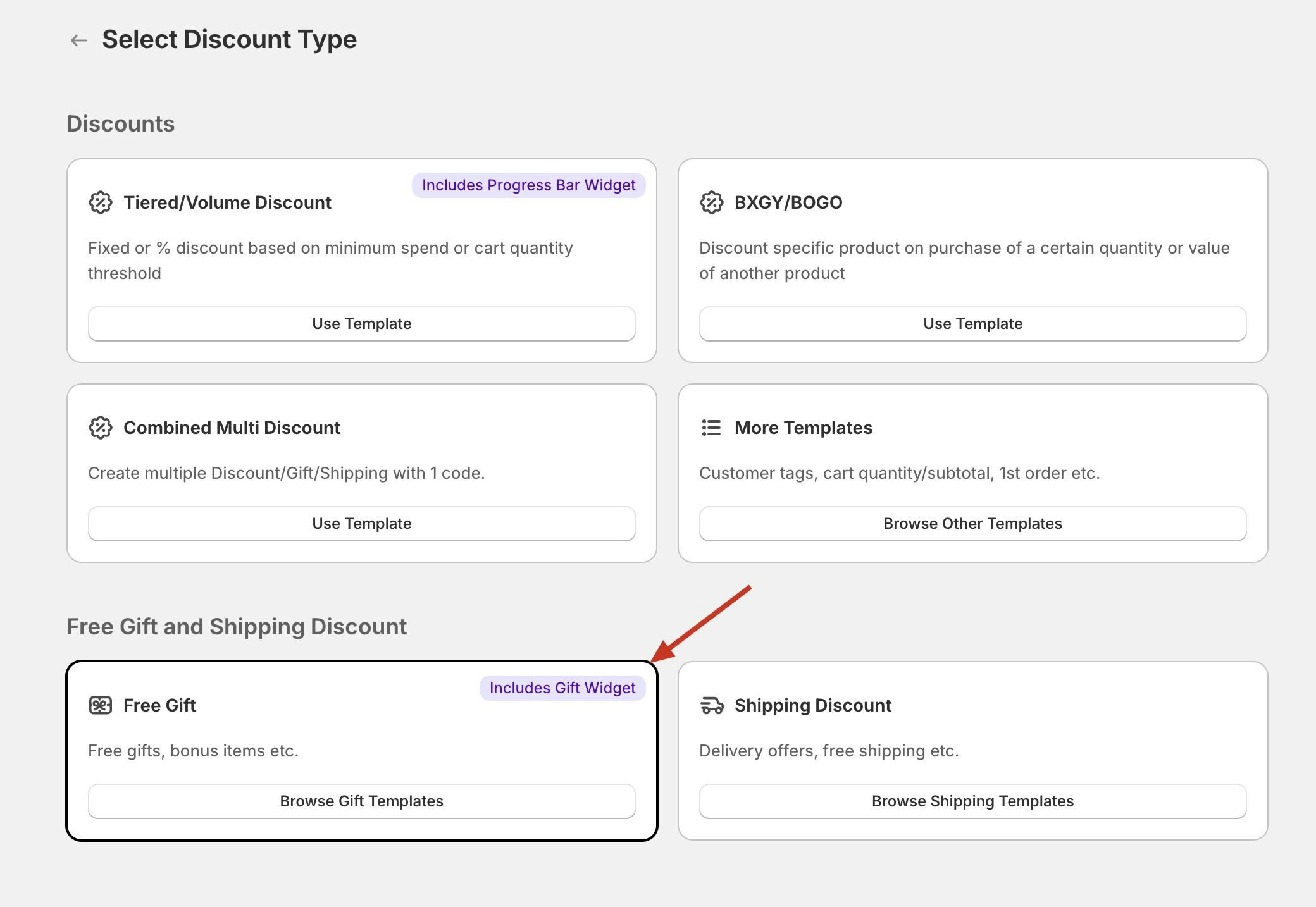
- In the AIOD app, click on Free Gift discount and select Custom Rule Builder.
- Give your campaign a ID for internal reference. (e.g.,
Specific-Variant-Freebie), Select Automatic Discount in the discount method and give a customer facing discount title (e.g.Freebie-with-Blue-Short).
2. Create Your Gift Rule
-
In the When to add the gift section, select a condition when free gift should be added. Example, “Variant” and matches one of and select the variant.
AIOD has 15+ conditions you can select from, including - Customer Conditions (customer tag, order history, country, email), Product Conditions (specific product or collection or variant is added to cart), Cart Conditions (Cart Value or Quantity of items in the cart). You can use AIOD to select multiple conditions by clicking “AND” operator.
- Below this rule, select the specific item you want to offer as the free gift when this condition is met. You can select one or more than one item in this step.
3. Choose How Gifts are Added
When a customer’s order qualifies for free gift, how free gift is added to cart can be controlled in How to add the gift section:- Select Automatic: Automatically adds gift to cart, once the discount rules are met.

4. Customize the Widget
While creating or editing a **Free Gift **discount, find and click on the ‘Customize Banner’ button to open the editor.- Customize Widget Content: The left side of the editor controls the text and messaging of your widget. Here you can edit:
- Title bar text
- Title and gift options
- Configuration messages for different states
- Claim button text
- Gift widget states:
- Only Show When Valid: If checked, the banner will only be shown when the gift discount conditions are met.
- Hide Once Claimed: If checked, the banner will be hidden after the customer claims the gift.

5. Test & Activate
- Click Save to activate your promotion.
- Go to your store and test each condition separately to ensure the correct gift is offered.
- If you allow multiple gifts, test a scenario to confirm they receive both free items in their cart.